¶ Connecting the Printer to Wi-Fi
1.Go to the printer settings, select “Network”, and turn on the network function.
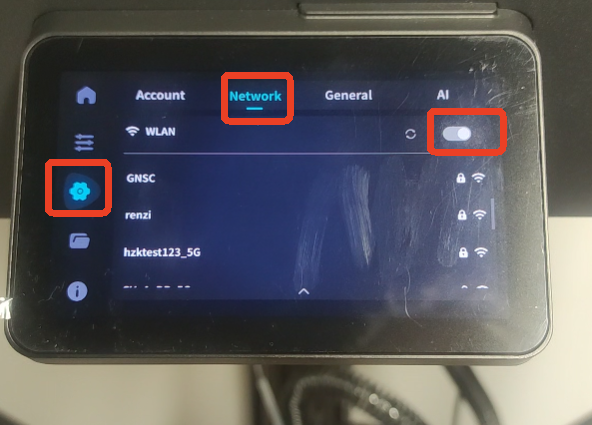
2.Choose your Wi-Fi network and enter the Wi-Fi password.

3.Wait for the printer to connect successfully and note the printer’s IP address.

¶ Connecting and Uploading Prints via Flsun Slicer
1.Open the Flsun Slicer software on your computer and make sure the computer is connected to the same local network as the printer.
2.Click “Device” and select “Add Printer”.

3.Enter the printer name and IP address, click “Confirm”, and connect successfully.

4.Click “Prepare” and import the model for slicing.

5.Select “Print” and then “Upload and Print”.

6.Wait for the upload to finish, and the printer will start printing automatically.

¶ Uploading Prints via Browser.
1.Make sure the computer is connected to the same Wi-Fi network as the printer.
2.Open a browser, enter the printer’s IP address, and log in to the web interface.

3.Drag and drop the G-code file you want to print into the webpage.

4.Select the file and start printing.

5.Or click “Upload and Print”.

6.Select the model to upload, and the printer will start printing.